
How to Add Apps to Block in Hinder When You Go Over Budget
Pick the apps Hinder locks the moment you blow your budget: DoorDash, Amazon, Uber and more. A two-minute walkthrough, including the Screen Time permission.
Before you start
Your Block List teaches Hinder which apps to lock when you cross your budget. Most people pick where they actually spend: food delivery, marketplaces, and ride-hailing.
Step 1: Tap “Add App”
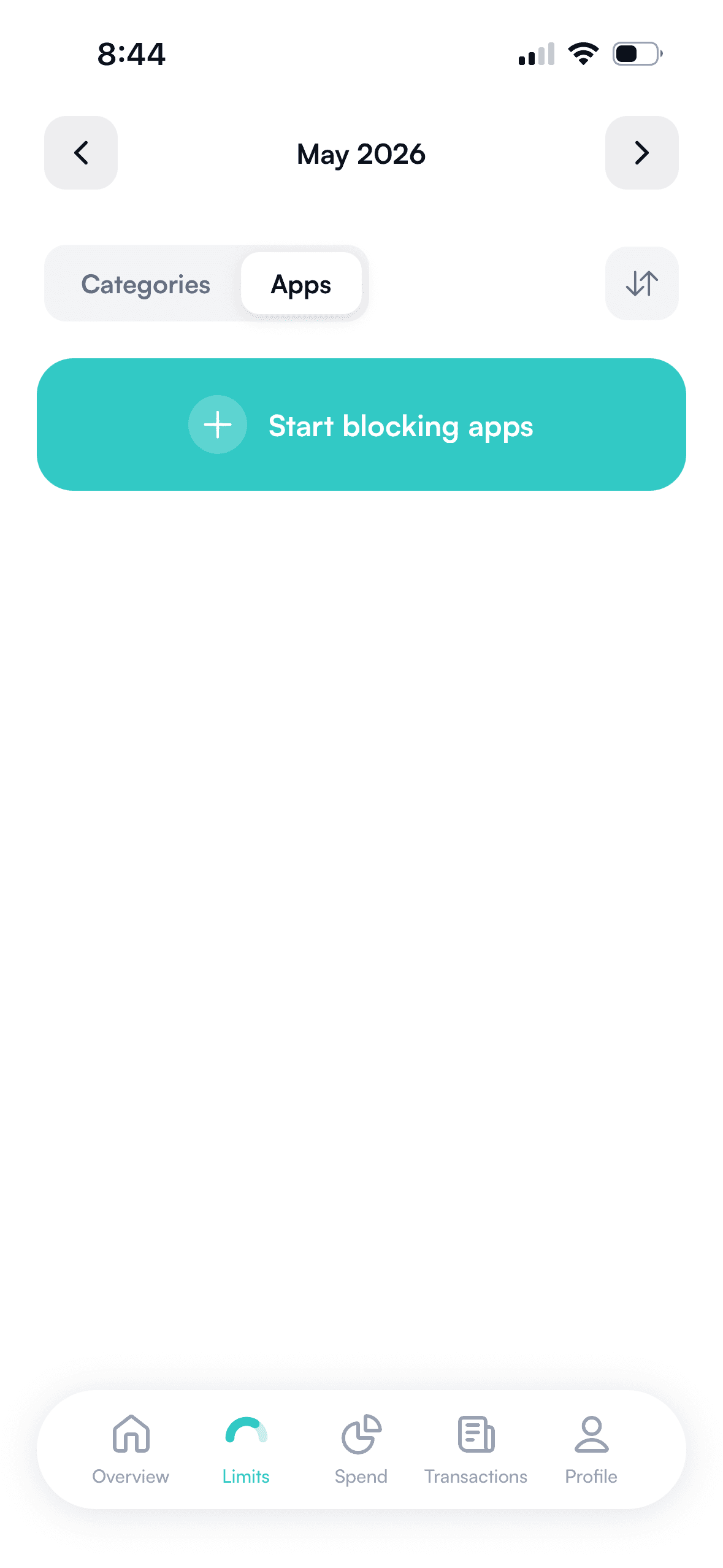
From the home screen, tap Add App to start building your Block List.
Step 2: Select the apps you want blocked
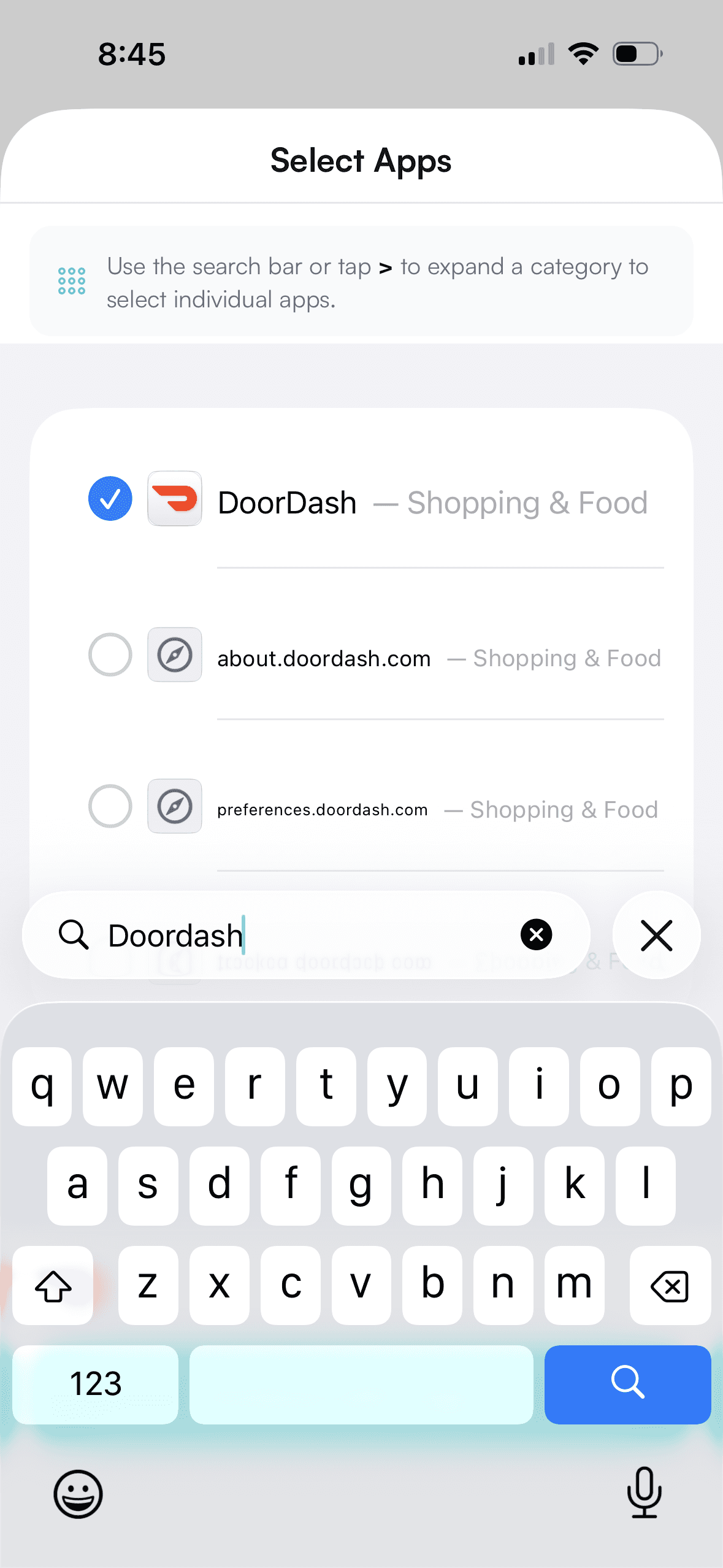
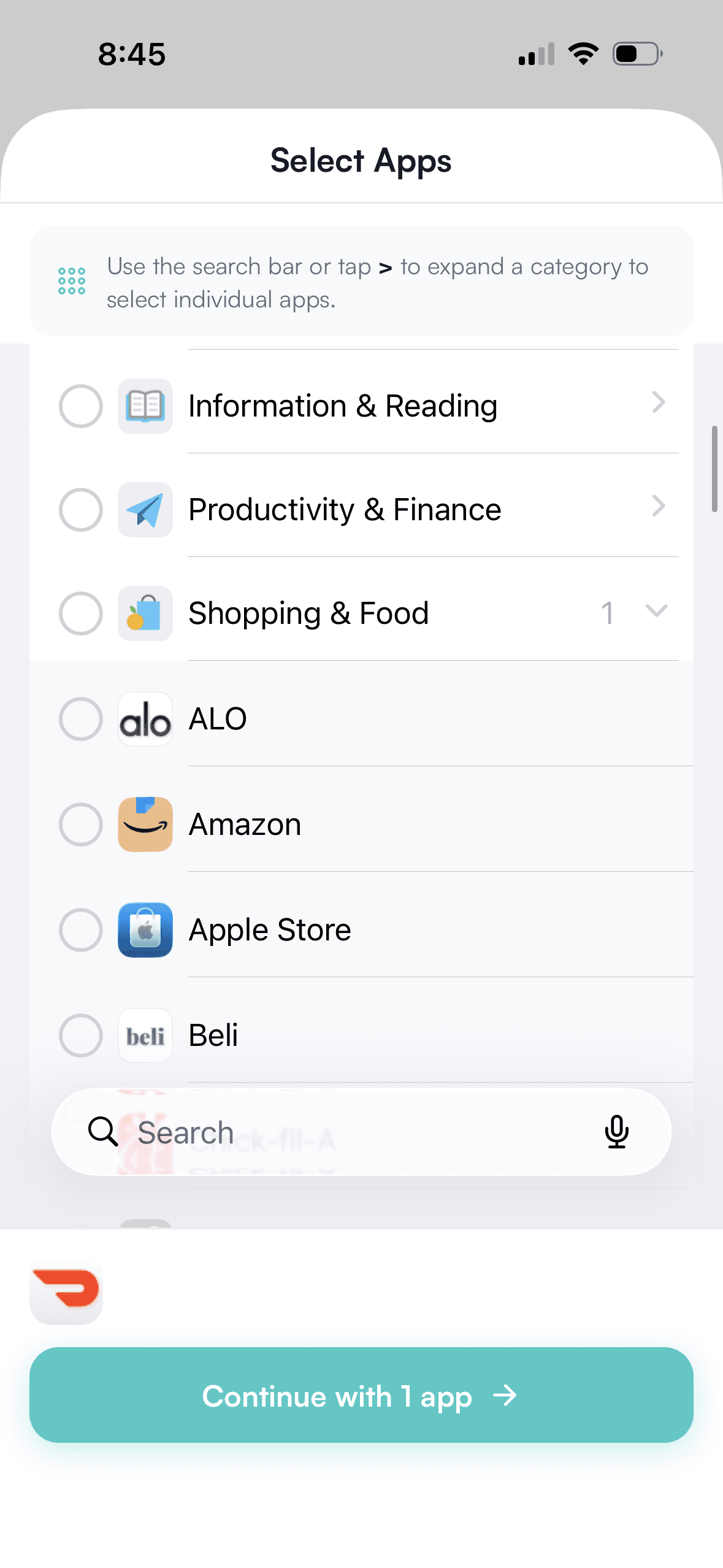
Search for an app by name or scroll through the list, then select the apps you want Hinder to block when you go over budget. You can pick as many as you want. When you are done, tap Continue.
Step 3: Name and categorize each app
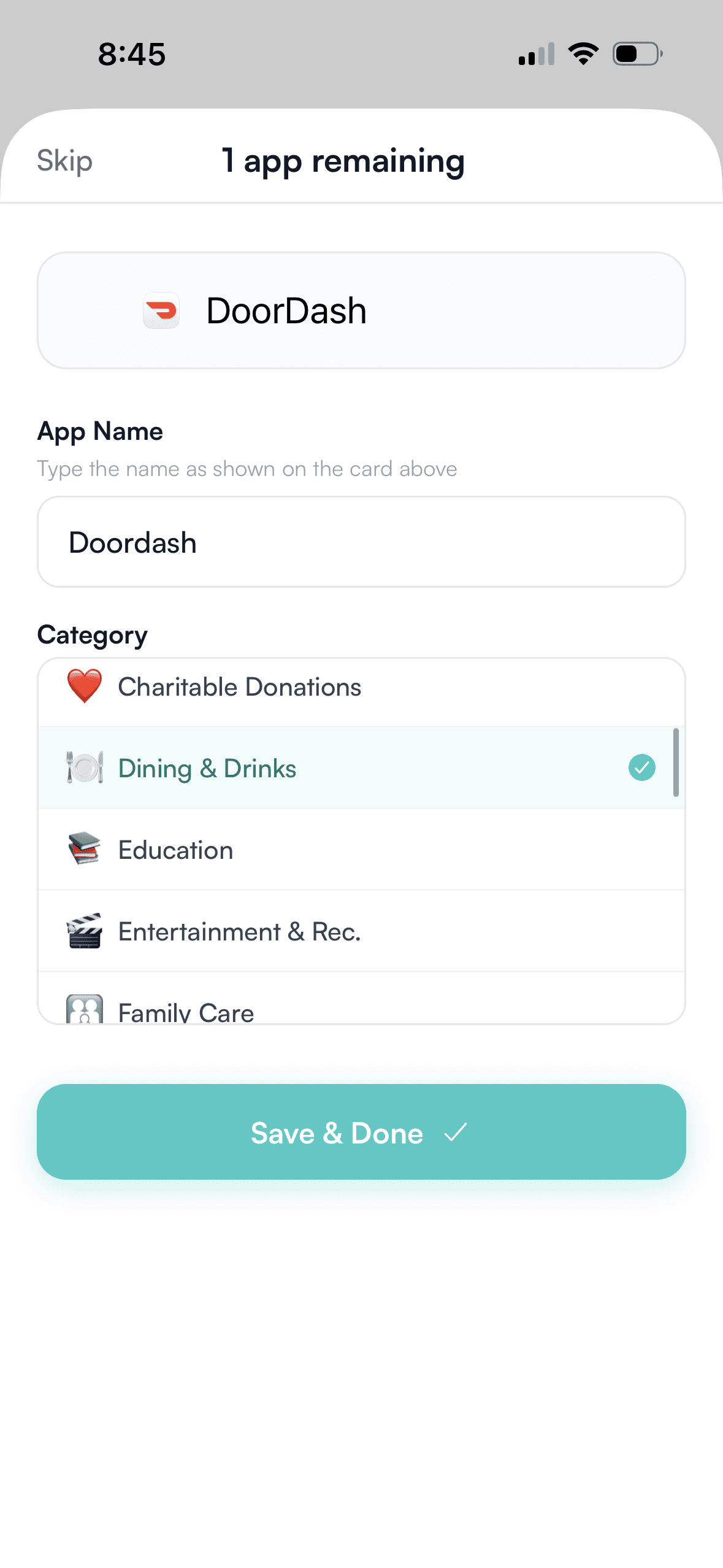
For each app you selected, enter the app name as shown on your phone and choose the matching category (food delivery, marketplace, ride-hailing, retail, and so on). Tap Continue to save it to your Block List.
The category is what tells Hinder which budget bucket the app counts against, so spending in your DoorDash app gets tracked under your dining budget rather than your overall total.
Which apps should I block?
Pick the apps where you actually spend money, not the ones you scroll. Common picks:
- Food delivery: DoorDash, Uber Eats, Grubhub, Instacart
- Marketplaces: Amazon, eBay, StockX, Etsy
- Ride-hailing: Uber, Lyft
- Subscriptions and gaming: App Store, Steam, in-app purchases
- Retail: Target, SHEIN, Temu, anywhere you one-tap-checkout
You can change the list any time. The whole point is to put friction in front of the spending you regret, not the spending you need.
You are done
That is the entire setup. Hinder runs in the background, watches every transaction Plaid sees, and the moment you cross your budget your Block List apps freeze. No willpower required.