
Automated budget enforcement tools: what actually enforces a spending limit
A budget is a number and a consequence. Most apps only do the number. These are the tools that handle the consequence for you.
Automated budget enforcement is when a tool does something at your spending limit instead of just telling you about it. It locks the app, declines the card, or makes you wait. The tools that do this are cooldown apps, time-based app lockers, Hinder, and your bank's card controls.
What is automated budget enforcement?
Every budget has two halves: the number and the consequence. “$150 on food delivery” is the number. What happens at $151 is the consequence. Nearly every budgeting app on your phone handles the first half beautifully and leaves the second half to you, at 9pm, hungry, with DoorDash already open.
Budget enforcement is the second half. Automated budget enforcement means you set the rule once, when you're calm, and a tool carries it out later without asking you to be strong. The important word is automated. If the consequence depends on you choosing it in the moment, it isn't enforcement. It's a reminder with better branding.
That's the whole category. The rest of this page is about how far each kind of tool goes, and what each one costs you in convenience.
What counts as budget enforcement, and what is just an alert?
Here's the test. At the limit, does something change that you did not choose right then?
An alert fails the test. YNAB turns the category red and sends a push. Monarch, PocketGuard and Rocket Money all let you pick a threshold and will notify you when you cross it. None of that stops the order. You read the notification, you feel a thing, you swipe it away. Those four are good trackers, and we scored them in our roundup of budgeting apps that do and don't stop overspending. If you want a planner, pick one. But a plan is not a fence.
Enforcement passes the test. The app won't open. The card declines. The checkout button is 72 hours away. You can still get around most of it, and we'll be honest about how hard that is at each level, but the default flips from “you spend unless you stop yourself” to “you don't spend unless you go out of your way.”
The five levels of budget enforcement tools
Ordered from weakest to strongest, by what actually happens when you hit the limit.
| Tool | Trigger | At the limit | Override | Platform |
|---|---|---|---|---|
 YNAB YNAB | Money spent | Category turns red, push alert | Ignore it | iPhone, Android, web |
 Monarch Monarch | Money spent | Alert at the threshold you set | Ignore it | iPhone, Android, web |
 PocketGuard PocketGuard | Money spent | Overspend alert, category goes orange | Ignore it | iPhone, Android, web |
 Rocket Money Rocket Money | Money spent | Alert at the threshold you set | Ignore it | iPhone, Android, web |
 CartPause CartPause | An item you share to it | Starts a 24 to 72 hour timer | Buy it in the store app anyway | iPhone, Mac |
 one sec one sec | Opening a flagged app | Forces a breath, then asks if you still want in | Tap through | iPhone, Android |
| Screen Time App Limits | Minutes used | Blocks the app for the day | Passcode, once Block at End of Limit is on | iPhone, iPad, Mac |
 Freedom Freedom | Time, on a schedule | Blocks apps and sites during the session | Locked Mode allows one early exit per 7 days | iPhone, Android, Mac, Windows |
 AppBlock AppBlock | Time or location | Blocks apps and sites | Strict Mode can freeze your settings for days | iPhone, Android |
 Shop Locked Shop Locked | Time of day | Locks shopping apps and sites outside your window | Change the window | iPhone |
 Hinder Hinder | Money spent, from your bank | Locks every app in that budget | About 5 minutes, or raise the limit on purpose | iPhone |
| Bank card lock | You flip it yourself | Card declines every new purchase | Flip it back on | Most major US banks |
| Envelope | Money left in the envelope | Card declines the purchase | Move money into the envelope first | iPhone, Android |
YNAB- Trigger
- Money spent
- At the limit
- Category turns red, push alert
- Override
- Ignore it
Monarch- Trigger
- Money spent
- At the limit
- Alert at the threshold you set
- Override
- Ignore it
PocketGuard- Trigger
- Money spent
- At the limit
- Overspend alert, category goes orange
- Override
- Ignore it
Rocket Money- Trigger
- Money spent
- At the limit
- Alert at the threshold you set
- Override
- Ignore it
CartPause- Trigger
- An item you share to it
- At the limit
- Starts a 24 to 72 hour timer
- Override
- Buy it in the store app anyway
one sec- Trigger
- Opening a flagged app
- At the limit
- Forces a breath, then asks if you still want in
- Override
- Tap through
- Trigger
- Minutes used
- At the limit
- Blocks the app for the day
- Override
- Passcode, once Block at End of Limit is on
Freedom- Trigger
- Time, on a schedule
- At the limit
- Blocks apps and sites during the session
- Override
- Locked Mode allows one early exit per 7 days
AppBlock- Trigger
- Time or location
- At the limit
- Blocks apps and sites
- Override
- Strict Mode can freeze your settings for days
Shop Locked- Trigger
- Time of day
- At the limit
- Locks shopping apps and sites outside your window
- Override
- Change the window
Hinder- Trigger
- Money spent, from your bank
- At the limit
- Locks every app in that budget
- Override
- About 5 minutes, or raise the limit on purpose
- Trigger
- You flip it yourself
- At the limit
- Card declines every new purchase
- Override
- Flip it back on
- Trigger
- Money left in the envelope
- At the limit
- Card declines the purchase
- Override
- Move money into the envelope first
Level 1: alerts only
PocketGuard, Monarch, Rocket Money and YNAB sit here. The trigger is money, which is the right trigger. The action is a notification, which is the wrong action. Fully automatic, stops nothing, overridden by ignoring it. Worth having, because you can't enforce a limit you can't measure. Just don't mistake it for enforcement.
Level 2: cooldowns and pauses

CartPause and one sec · Trigger: a purchase, or an app opening
CartPause takes any item you share to it from a store and starts a 72, 48 or 24 hour timer. The purchase itself isn't blocked. The urge just has to outlive the timer, and most urges don't. one sec works earlier in the chain: it intercepts the app you flagged, makes you take a breath before it opens, then asks if you still want in. A study covered by Fortune found it cut opens of the flagged apps by more than half.
The trade-off: these are the least automatic tools on the ladder. CartPause only works on items you choose to send it, and one sec can be tapped through by anyone who has already decided. A speed bump, not a wall. Speed bumps work more often than you'd think, which is why they're here.
Level 3: time-based app locks

Screen Time, Freedom, AppBlock, Shop Locked · Trigger: the clock
This is where real locking starts, and some of it is built into your iPhone. Screen Time's App Limits can cap an app at one minute a day, and if you set a Screen Time passcode and turn on Block at End of Limit, the Ignore Limit button goes away. Freedom schedules blocks across phone and computer, and its Locked Mode only lets you end a session early once every seven days. AppBlock's Strict Mode can freeze your own settings for a week and hide the App Store so you can't delete it in a weak moment. Shop Locked flips the idea: you pick a shopping window, and outside those hours your shopping apps and sites are locked.
The trade-off: the trigger is the clock, not your balance. Lock DoorDash after 9pm and you're protected at 9:05 and wide open at 8:55, with the same budget. A time lock has no idea whether you're under or over. It locks on a good month and a bad month alike, which is exactly why people switch it off.
Level 4: money-based app locks

Hinder · Trigger: your actual spending, from your bank
One tool here, as far as we know: Hinder. It reads your real transactions through a bank connection and locks the apps you picked when a category or per-app limit hits 100%. Under budget, nothing is locked. Over budget, the app won't open. The trigger is money, like the alert apps, and the action is a lock, like the time-based apps. It's the only tool we've found that puts the right trigger with the right action.
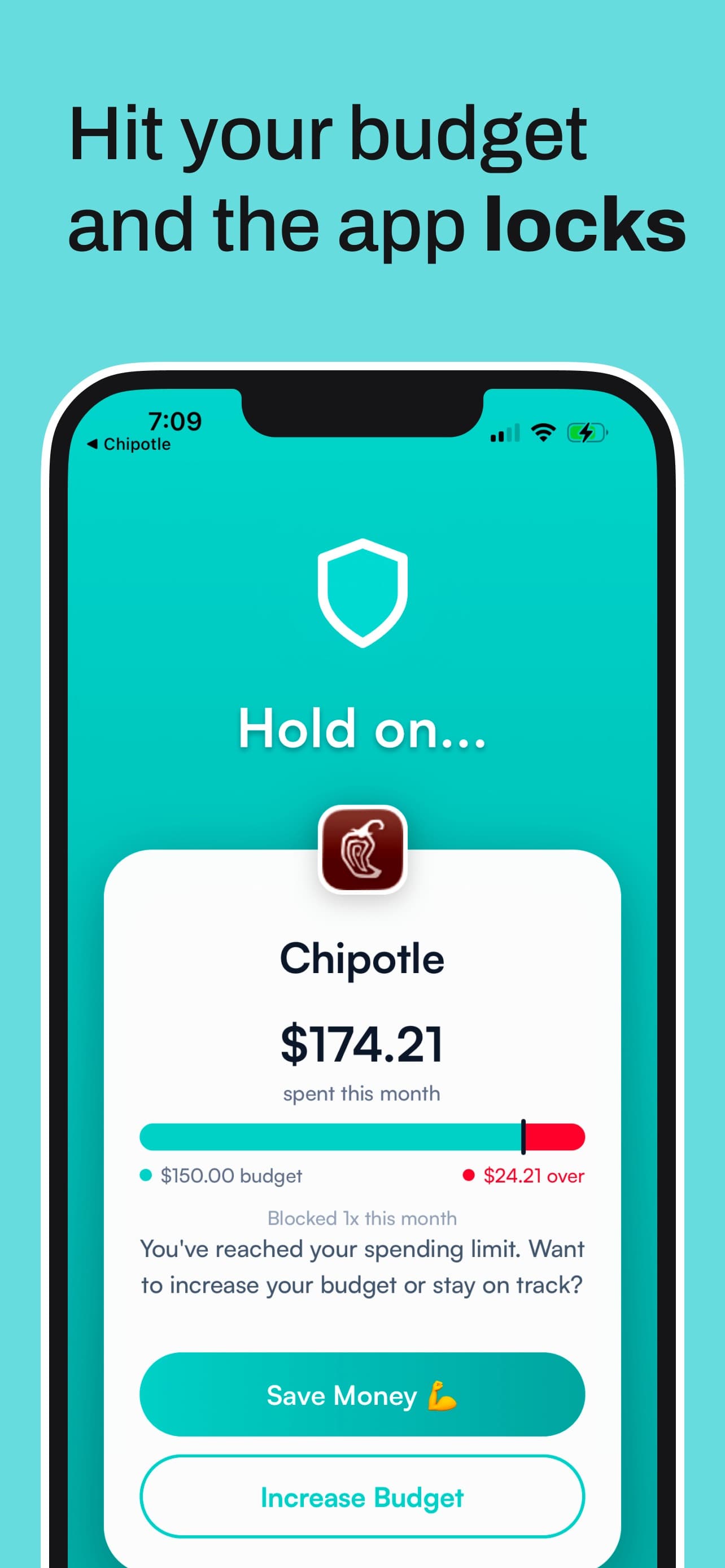
The trade-off: it's iPhone only, and it can only lock apps. Go over your shopping budget and walk into a Target, and Hinder has nothing to say about it. It covers the spending that happens inside apps, which for most people is most of the problem.
Level 5: card-level controls
The strongest rung, and the bluntest. Chase, Bank of America, Wells Fargo, Capital One and Discover all let you lock or freeze a card from their app, and a locked card declines every new purchase, in-store or online, though recurring charges usually still go through. What the big banks don't offer on consumer cards, as far as we could verify, is a limit per merchant category or per transaction. U.S. Bank has category and daily, weekly or monthly limits, but only on business cards through its Spend Management tools.
The Envelope app fills that gap with its own card. Its Auto-lock keeps the card off until you open the app, pick an envelope, and turn it on for one purchase. If the purchase is bigger than the envelope's balance, it declines, even if you have money elsewhere. Virtual cards tied to one envelope do the same without the pre-purchase step. And at the far end: a prepaid debit card loaded with the month's budget, or cash in literal envelopes. When the envelope is empty, the enforcement is physics.
The trade-off: a card lock stops everything, groceries and gas included, so you have to remember to lift it, and most people stop bothering by week two. Envelope asks you to assign money before you spend it, which is the whole discipline of envelope budgeting. Some people love that. Most people don't last. And cash can't be tracked or lock your phone.
Which automated budget enforcement tool should you use?
Pick by where your money actually leaks.
- Impulse buys from random sites and TikTok Shop: a cooldown. CartPause, because the spend is spread across stores and no app lock catches all of them.
- Late-night scrolling that turns into orders: a time lock. Shop Locked, or Screen Time with Block at End of Limit, which is free.
- The same three or four apps, over budget by the 20th: Hinder. Set a limit per app or per category and let it lock when the money is gone. Our list of apps that actually stop you from spending money covers the runners-up if you want the roundup.
- Everything, everywhere, and you don't trust yourself with any of it: card-level. Lock the card, or run a card whose limit is the envelope.
Most people want two: a money-based lock for the app spending plus a cooldown for the rest. That's about as much spending limit enforcement as you can get without going full cash.
How Hinder enforces a budget limit automatically
Hinder connects to your bank and card accounts through Plaid, and you can add transactions by hand too. You create categories, set a monthly limit per category and per app, and pick which apps each one controls. At 80% you get a push alert. At 100% Hinder uses iOS Screen Time to lock the apps behind a block screen. Blow a category budget and every app in that category locks at once, so going over on food delivery freezes DoorDash and Uber Eats together.
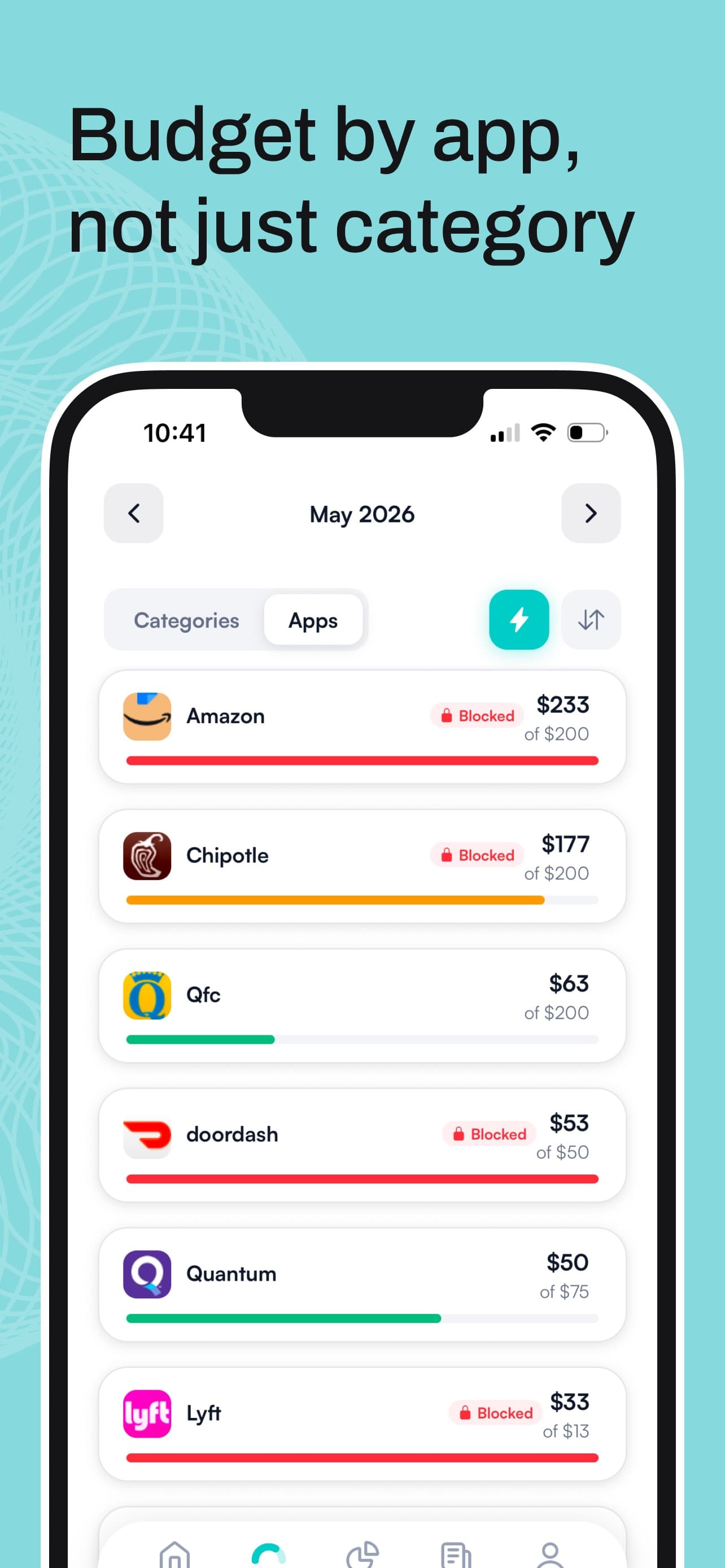
The block screen gives you two buttons: Save Money or Increase Budget. A temporary unblock lasts about five minutes. The real way out is raising the limit, on purpose, in the app, which is the point. The override is deliberate, and it leaves a mark on the number you set when you were calm.


Setup takes a few minutes. The Screen Time permission is the only fiddly part, and we walk through it in how to add apps to block in Hinder. For a worked example on one app, see how to block Uber Eats when you're over budget. Hinder is iPhone only, free to download with a free trial, and needs a subscription after that.
Can Screen Time alone enforce a budget?
Not a money budget. Screen Time counts minutes. It has no idea what you spent, so it can't tell the difference between a month where you ordered once and a month where you ordered nineteen times. What it can do is enforce a schedule, and with a passcode plus Block at End of Limit it does that well. If your problem is purely “I open Amazon at midnight,” a one-minute daily limit with Block at End of Limit costs nothing and works.
If your problem is “I spend too much,” the schedule misses. You need the lock tied to the balance, which is exactly the gap Hinder uses Screen Time to close.
Common questions
Is there an app that automatically enforces a budget?
Yes. Hinder connects to your bank, tracks spending per category and per app, and uses iOS Screen Time to lock the apps you picked the moment a limit hits 100%. It is the only money-triggered app lock we know of. Time-based blockers like Freedom and Shop Locked enforce a schedule instead.
Can a bank enforce a spending limit?
Partly. Chase, Bank of America, Wells Fargo, Capital One and Discover all let you lock a card in their app, and a locked card declines new purchases. None of them offers a per-category or per-transaction limit on consumer cards as far as we could verify. The Envelope app does that with its own card.
What is the difference between a budget alert and budget enforcement?
An alert tells you that you hit the limit and leaves the decision to you. Enforcement changes something without asking: the app will not open, the card declines, or the purchase has to wait. YNAB, Monarch, PocketGuard and Rocket Money alert. Hinder, card locks and cooldown apps enforce.
Can Apple Screen Time enforce a spending limit by itself?
No. Screen Time counts minutes, not dollars, so it cannot tell a cheap month from an expensive one. It can enforce a schedule, and with a passcode plus Block at End of Limit the Ignore Limit button goes away. Hinder uses the same Screen Time lock but triggers it from your real spending.
What is the hardest spending limit enforcement to get around?
Cash. An empty envelope cannot be overridden. After that, a card whose limit equals the money you assigned to it, then a bank card lock, then an app lock protected by a Screen Time passcode. Alerts and breathing pauses are the easiest to get past, because you can dismiss them in one tap.