How do I block shopping apps on my iPhone?
Three real options, the exact Settings taps for each, and the one thing none of Apple's tools can see.
To block shopping apps on iPhone, go to Settings, then Screen Time, then App Limits, tap Add Limit, and pick Shopping & Food. Set a Screen Time passcode and turn on Block at End of Limit so it sticks. To stop reinstalls, set Installing Apps to Don't Allow. To block only after you've spent your budget, use Hinder.
The 3 ways to block shopping apps, compared
The first two are built into iOS and free. The third reads your actual spending. Settings paths were checked against Apple's iPhone User Guide for iOS 18 and iOS 26 in October 2026.
| Method | What triggers the block | Easy to get around? | Knows what you spent? | Cost |
|---|---|---|---|---|
| Screen Time App Limits | Minutes used in Shopping & Food apps | Yes, unless a passcode and Block at End of Limit are on | No | Free, built in |
| Content & Privacy Restrictions | Always on. Blocks installing or deleting apps | Only as hard as the passcode holder makes it | No | Free, built in |
 Hinder Hinder | Your monthly shopping budget hitting 100% | Short unblock, or raise the limit on purpose | Yes, via your bank and cards | Subscription after a one-week free trial |
- What triggers the block
- Minutes used in Shopping & Food apps
- Easy to get around?
- Yes, unless a passcode and Block at End of Limit are on
- Knows what you spent?
- No
- What triggers the block
- Always on. Blocks installing or deleting apps
- Easy to get around?
- Only as hard as the passcode holder makes it
- Knows what you spent?
- No
Hinder- What triggers the block
- Your monthly shopping budget hitting 100%
- Easy to get around?
- Short unblock, or raise the limit on purpose
- Knows what you spent?
- Yes, via your bank and cards
Look at the fourth column. Apple's tools are good at locking things, but they have no idea whether you spent $12 this month or $1,200. That's fine if your problem is scrolling. It's a problem if your problem is buying.
How do I set a Screen Time limit on shopping apps?
Use App Limits on the Shopping & Food category, then lock it with a passcode so you can't wave it off.
These steps match iOS 18 and iOS 26. iOS 27 reworked Screen Time mostly for parent and child accounts, so on your own phone it should look about the same, but labels can shift between updates.
1Add the limit
- Open Settings and tap Screen Time.
- If you haven't already, tap App & Website Activity and turn it on.
- Tap App Limits, then Add Limit.
- Check Shopping & Food. To limit only certain apps, tap the category name and pick them, say Amazon, Temu, and Shein.
- Tap Next, set the time, and tap Add. Customize Days lets you give weekends a different number.
2Make it actually block
Without a passcode, hitting the limit gives you One More Minute, Remind Me in 15 Minutes, and Ignore Limit for Today. You will tap Ignore. Everyone does. So:
- In Settings, then Screen Time, scroll down and tap Lock Screen Time Settings. Enter a four-digit passcode twice.
- Go back into App Limits, tap your shopping limit, and turn on Block at End of Limit. That toggle only appears once a passcode exists.
Now when time's up, the app asks for the passcode. If you're the one who knows it, that's four digits of friction. Better than nothing. Not much better.


Only fighting one app? Our walkthrough on how to block the Amazon app goes deeper on that single case.
Why don't time limits stop impulse buying?
Because buying something takes about 30 seconds, and a time limit counts minutes, not money.
Think about how a bad purchase actually happens. You open Temu, tap the thing you saw on TikTok, hit Buy with Apple Pay, done. That's well under a minute. A 15-minute daily limit doesn't even notice. Meanwhile, the day you spend 40 minutes comparing two vacuums and buy nothing, it locks you out.
Set the limit to one minute and it's basically a full block, which is honest, but now you can't check a tracking number either. Time is just the wrong unit. The thing you want to cap is dollars. If TikTok is where the urge starts, we wrote a separate guide to stopping impulse buys on TikTok Shop.
How do I stop myself from downloading shopping apps again?
Turn off app installs and deletions in Content & Privacy Restrictions, and give the Screen Time passcode to someone else.
Here's the loophole this closes. You delete Shein in a moment of strength. Three days later, you reinstall it in a moment of weakness. Takes ten seconds.
1Lock the App Store
- Open Settings, then Screen Time.
- Tap Content & Privacy Restrictions and turn it on.
- Tap iTunes & App Store Purchases.
- Set Installing Apps to Don't Allow. That hides the App Store, so nothing new gets in.
- Set Deleting Apps to Don't Allow if you also want to stop the delete-and-reinstall trick around an App Limit.
- Optional: set In-app Purchases to Don't Allow. Heads up, this only covers purchases through Apple, not checkout inside Amazon or Temu.
2Hand over the passcode
This is the whole trick. Ask a partner, roommate, or friend to type a passcode you don't see under Lock Screen Time Settings. Skip Screen Time Passcode Recovery, since that lets you reset it yourself with your Apple Account, which defeats the point.
The catch is obvious. Every time you need a legit new app, a bank app, a boarding pass, you have to go find your passcode person. Some people love that. Most people quietly turn it off within a month.
Can I block shopping apps only after I hit my budget?
Yes, that's what Hinder does: it locks your shopping apps once your real spending reaches the monthly limit you set.
You link your bank and cards through Plaid (or log cash purchases by hand). Then you set a monthly budget for a category, like Shopping at $250, or for a single app, like Temu at $0. Shopping apps work normally while you're under. At 80% you get a push notification. At 100%, Hinder uses iOS Screen Time to lock every shopping app tied to that budget, all at once. Amazon, Target, Shein, the lot.
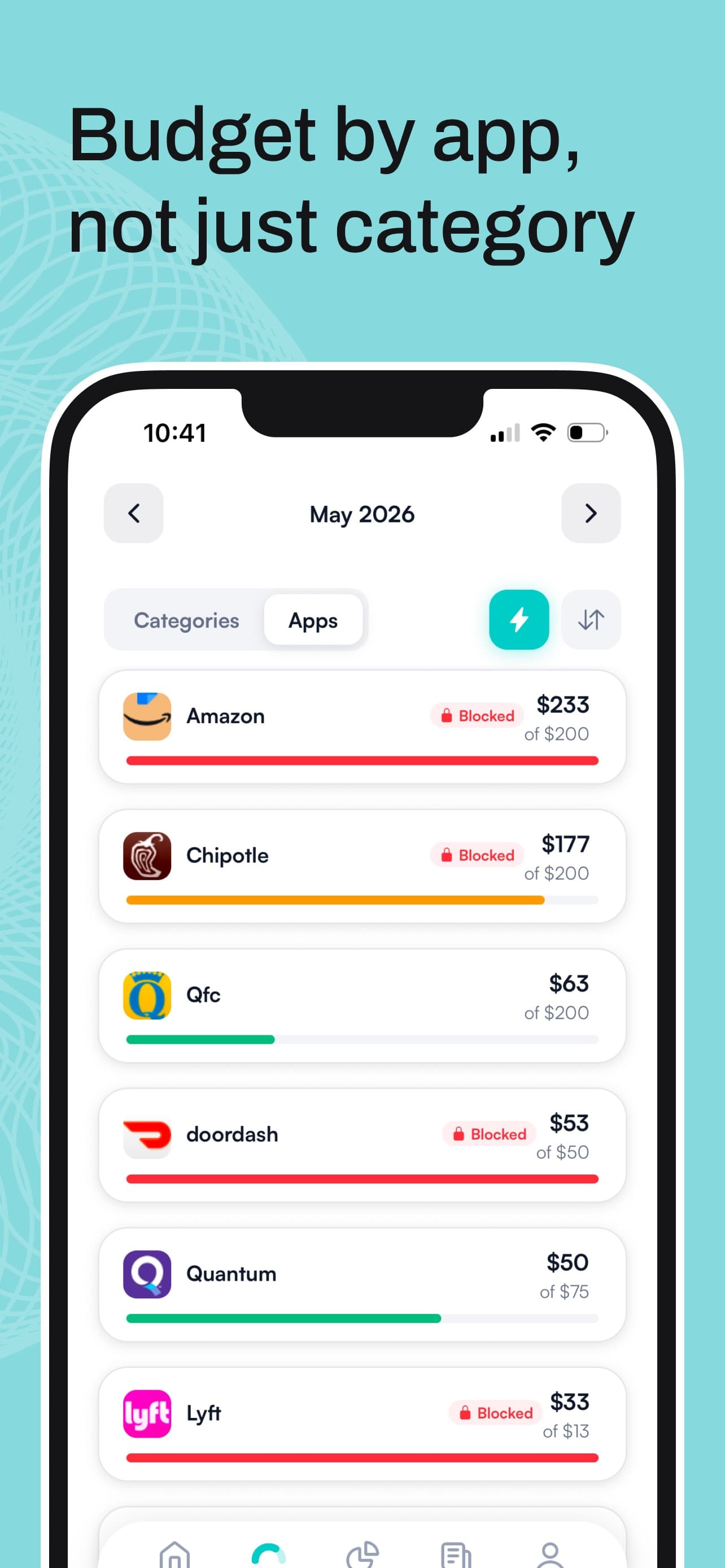
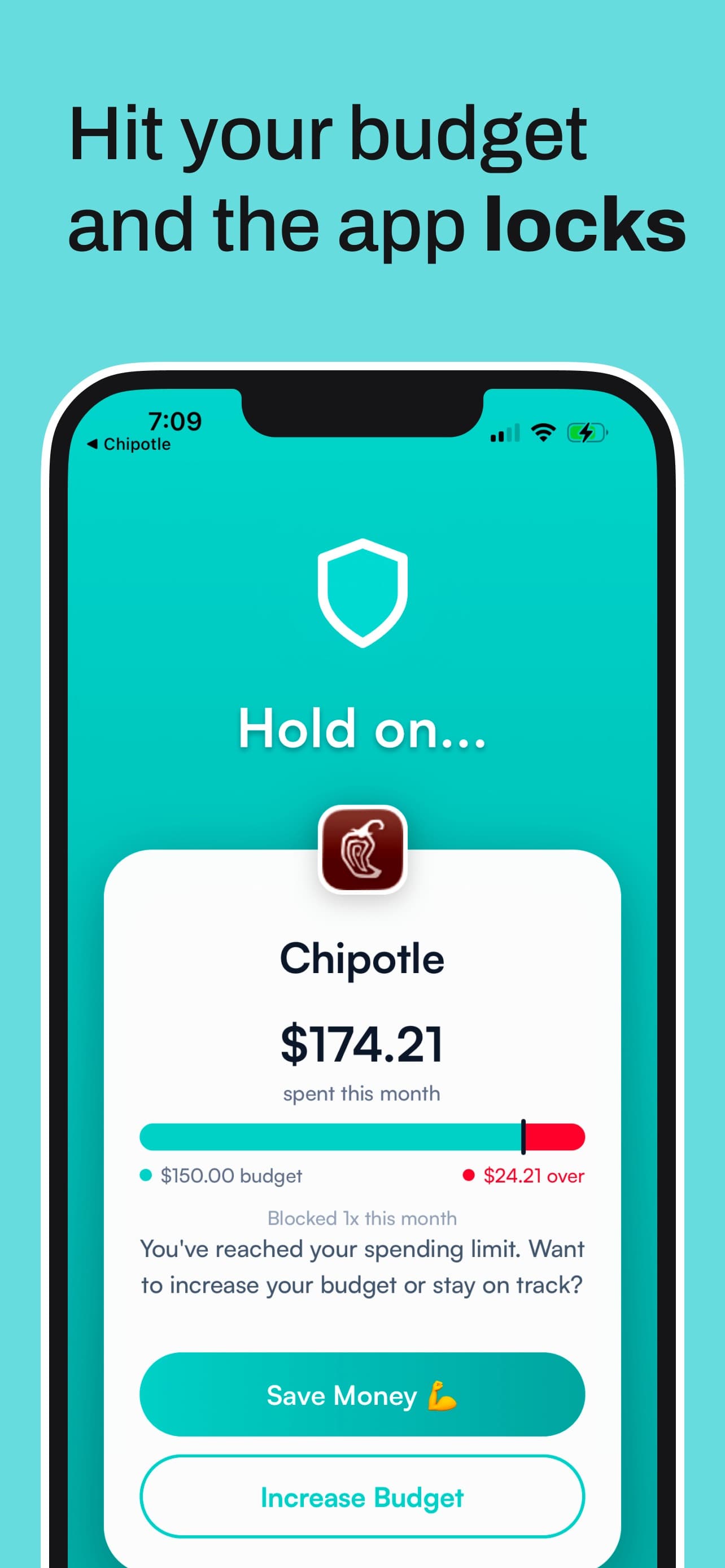
The block screen has two buttons, Save Money and Increase Budget. You can take a temporary unblock of about five minutes if you really need to check an order. To get back in for real, you raise the limit yourself, on purpose. That's a decision, not a reflex, and that's the point.
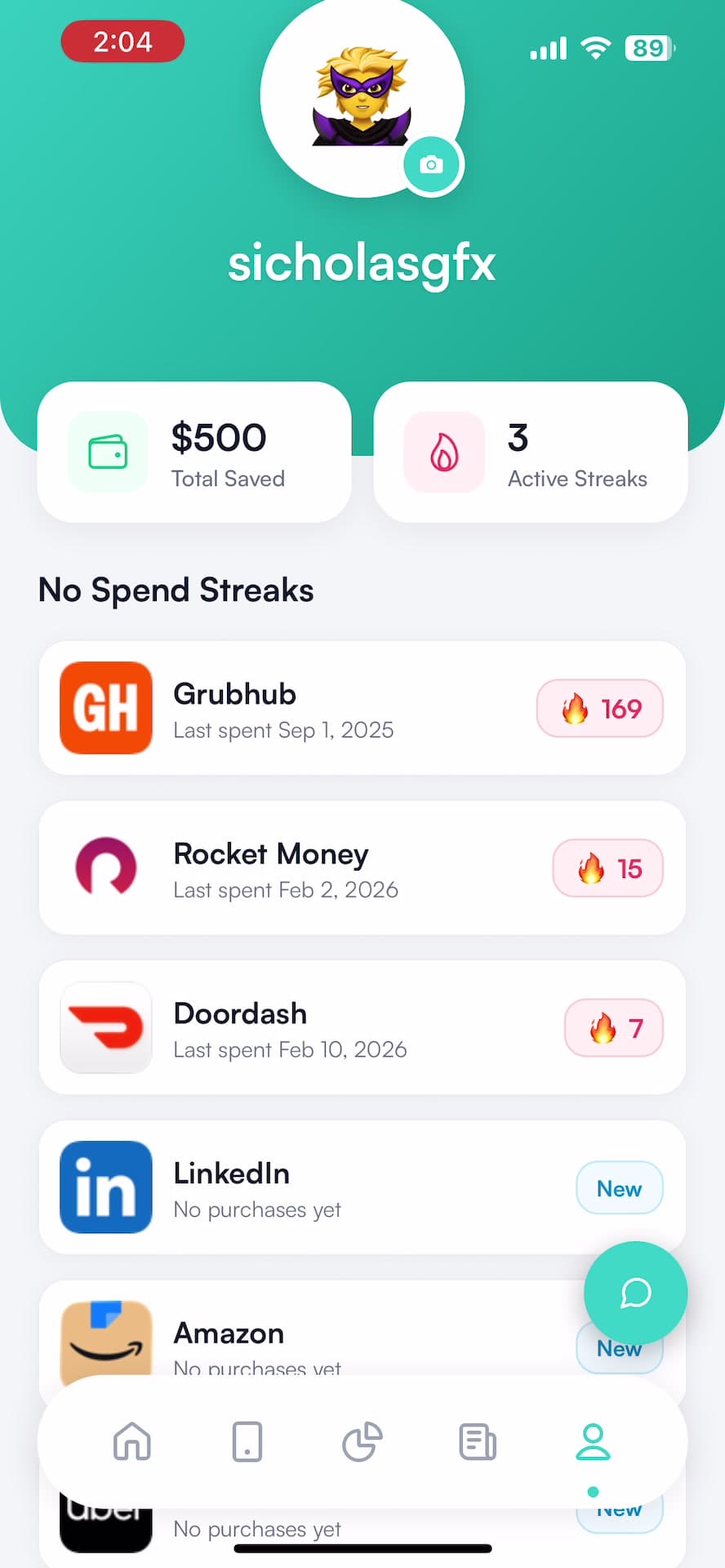
Compare that to the table up top. A time limit locks you out on a day you bought nothing. Hinder leaves you alone until the money's actually gone. Per-app no-spend streaks keep score of how long you've kept your hands off, with a running estimate of what you saved.
Setting up which apps sit behind which budget is covered in how to choose apps to block in Hinder.
Which method should you pick?
Pick the one that matches how you actually overspend, and stack them if you need to.
- You lose hours browsing hauls. Screen Time App Limits on Shopping & Food, with Block at End of Limit. It's free and it targets the scrolling.
- You keep reinstalling the same app. Content & Privacy Restrictions with a passcode someone else holds. Blunt, but it works as long as they don't cave.
- You buy fast and regret it later. A budget-based lock like Hinder, because the problem is the dollars, not the minutes.
Want to see everything else in this space, including apps that add a pause before checkout? Our roundup of apps that stop you from spending money compares them side by side. And if you're wondering why limits that enforce themselves beat willpower, read automated budget enforcement tools.
What these methods can't do
None of them block shopping in your browser, and none of them are instant.
Block the Amazon app and amazon.com still loads in Safari. You can block specific sites under Content & Privacy Restrictions, then App Store, Media, Web, & Games, then Web Content, by choosing Limit Adult Websites and adding them under Never Allow. Hinder's lock lands on apps too, so pair it with a website block if Safari is your backup plan.
Hinder also waits on your bank. A purchase usually syncs within minutes to hours, so the lock lands when the charge shows up, not the second you tap Buy. Leave a little cushion in your budget. And it's iPhone only, for one person, with no shared household budgets.
Common questions
Can I block all shopping apps at once on iPhone?
Yes. Go to Settings, then Screen Time, then App Limits, tap Add Limit, and check the Shopping & Food category. One time limit then covers every app iOS files under that category. Tap the category name first if you'd rather pick individual apps like Amazon, Temu, or Shein.
How do I stop the Ignore Limit button on Screen Time?
Set a Screen Time passcode (Settings, then Screen Time, then Lock Screen Time Settings), then open your shopping limit and turn on Block at End of Limit. After that, the limit screen asks for the passcode instead of letting you ignore it for the day. It only works if you don't know the passcode.
Can I stop myself from downloading shopping apps again?
Yes. In Settings, then Screen Time, then Content & Privacy Restrictions, turn the feature on, tap iTunes & App Store Purchases, and set Installing Apps to Don't Allow. Pair it with a Screen Time passcode someone else holds, or you can just flip it back.
Is there an app that blocks shopping apps when I go over budget?
Yes, Hinder. It connects to your bank and cards through Plaid, tracks what you spend against a monthly limit you set, and locks your shopping apps through iOS Screen Time once you hit 100%. You get a warning at 80%. It's iPhone only.
Does blocking shopping apps stop me from shopping in Safari?
No. Every method here blocks apps, not your browser. Amazon.com still loads in Safari. If the website is your escape hatch, add the sites under Content & Privacy Restrictions, then App Store, Media, Web, & Games, then Web Content, using Limit Adult Websites and Never Allow.