Is there a Screen Time app for spending money?
You asked for "Screen Time, but for money." Most of what comes back is Screen Time, but for time. Here's the difference and what actually exists.
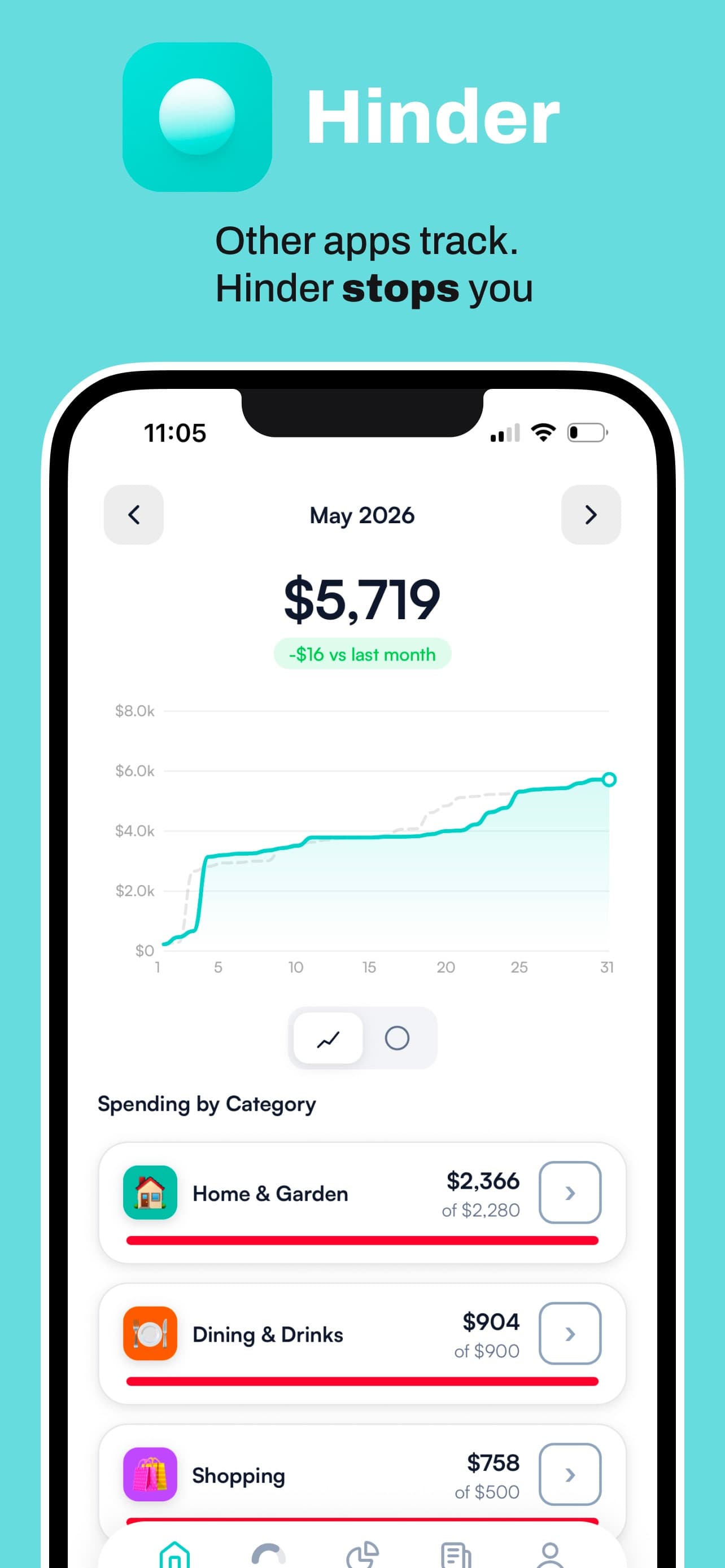
Yes. Hinder is the closest thing to Screen Time for spending money. It reads your bank and card transactions through Plaid and locks the connected apps in a category once that budget is spent. Apple Screen Time, Opal, one sec, AppBlock, and Freedom block by minutes, schedules, or app opens, and never see what you spent.
Screen Time style apps compared by what triggers the block
Every row here comes from the company's own site, pricing page, or help docs, checked in October 2026. The column that matters is the third one.
| App | What triggers the block | Knows your spending? | Platforms | Free option |
|---|---|---|---|---|
 Hinder Hinder | A category or per-app budget hits 100% (warning at 80%) | Yes, from your bank and cards via Plaid | iPhone (iOS 16+) | Free to download, 1-week free trial |
| Apple Screen Time | Daily minutes (App Limits) or a schedule (Downtime) | No | iPhone, iPad, Mac | Free, built in |
| Opal | Schedules, time limits, or open limits | No | iPhone, Android, Mac | Free tier with 1 rule |
 one sec one sec | Opening an app you flagged (a pause, not a lock) | No | iPhone, iPad, Android, Mac, browsers | Free for one app |
 AppBlock AppBlock | Schedules, daily usage limits, or a location | No | iPhone, Android, Chrome, Edge, Brave | Free tier, up to 2 schedules |
 Freedom Freedom | A session you start or schedule | No | iPhone, Android, Mac, Windows, Chromebook | Free plan, start-now sessions up to 2 hours |
Hinder- What triggers the block
- A category or per-app budget hits 100% (warning at 80%)
- Knows your spending?
- Yes, from your bank and cards via Plaid
- Platforms
- iPhone (iOS 16+)
- What triggers the block
- Daily minutes (App Limits) or a schedule (Downtime)
- Knows your spending?
- No
- Platforms
- iPhone, iPad, Mac
- What triggers the block
- Schedules, time limits, or open limits
- Knows your spending?
- No
- Platforms
- iPhone, Android, Mac
one sec- What triggers the block
- Opening an app you flagged (a pause, not a lock)
- Knows your spending?
- No
- Platforms
- iPhone, iPad, Android, Mac, browsers
AppBlock- What triggers the block
- Schedules, daily usage limits, or a location
- Knows your spending?
- No
- Platforms
- iPhone, Android, Chrome, Edge, Brave
Freedom- What triggers the block
- A session you start or schedule
- Knows your spending?
- No
- Platforms
- iPhone, Android, Mac, Windows, Chromebook
Five of six say no in that column. That's not a knock on them. They were built to protect your attention, and they do that well. They just weren't built to protect your bank account, and that's what you asked for.
What's the difference between time blocking and money blocking?
A time blocker locks an app because of the clock. A money blocker locks it because of your balance.
Say Amazon is your problem. With Screen Time you might cap it at 10 minutes a day. That's plenty of time to buy a $400 air fryer. Or you block it from 9pm to midnight with Opal, and you end up shopping at 8:45 instead. The lock fires on a schedule your spending never agreed to.
Flip it around. You've spent $40 on Amazon this month and your limit is $150. A time blocker still locks you out at 9pm, which gets annoying fast, and annoying is how blockers get deleted. A money blocker leaves you alone because you're fine. It only shows up when the number says you're not.
We made the same point in our breakdown of automated budget enforcement tools, where time-based locks sit one rung below budget-triggered ones.
How does Hinder lock apps when you overspend?
It connects to your bank through Plaid, counts what you spend per category and per app, and uses iOS Screen Time to lock the apps once a monthly limit is hit.
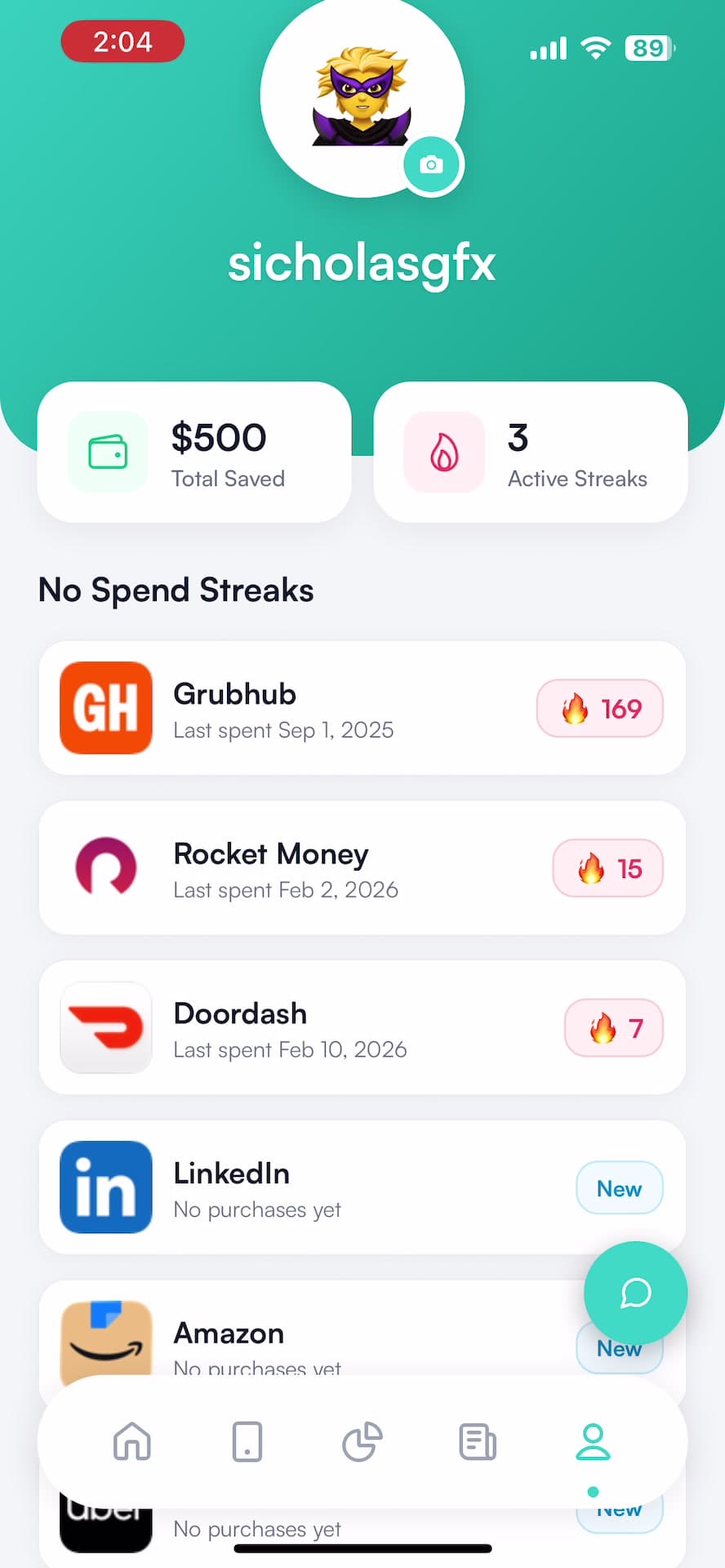
You make the categories. Shopping gets $200, food delivery gets $150, Temu gets $0 because you know what you did. Link as many banks and cards as you use, and add cash purchases by hand. At 80% of a limit you get a push notification. At 100%, every connected app in that category locks at once, so blowing the shopping budget takes out Amazon, Temu, and Shein together. A limit on a single app overrides its category.
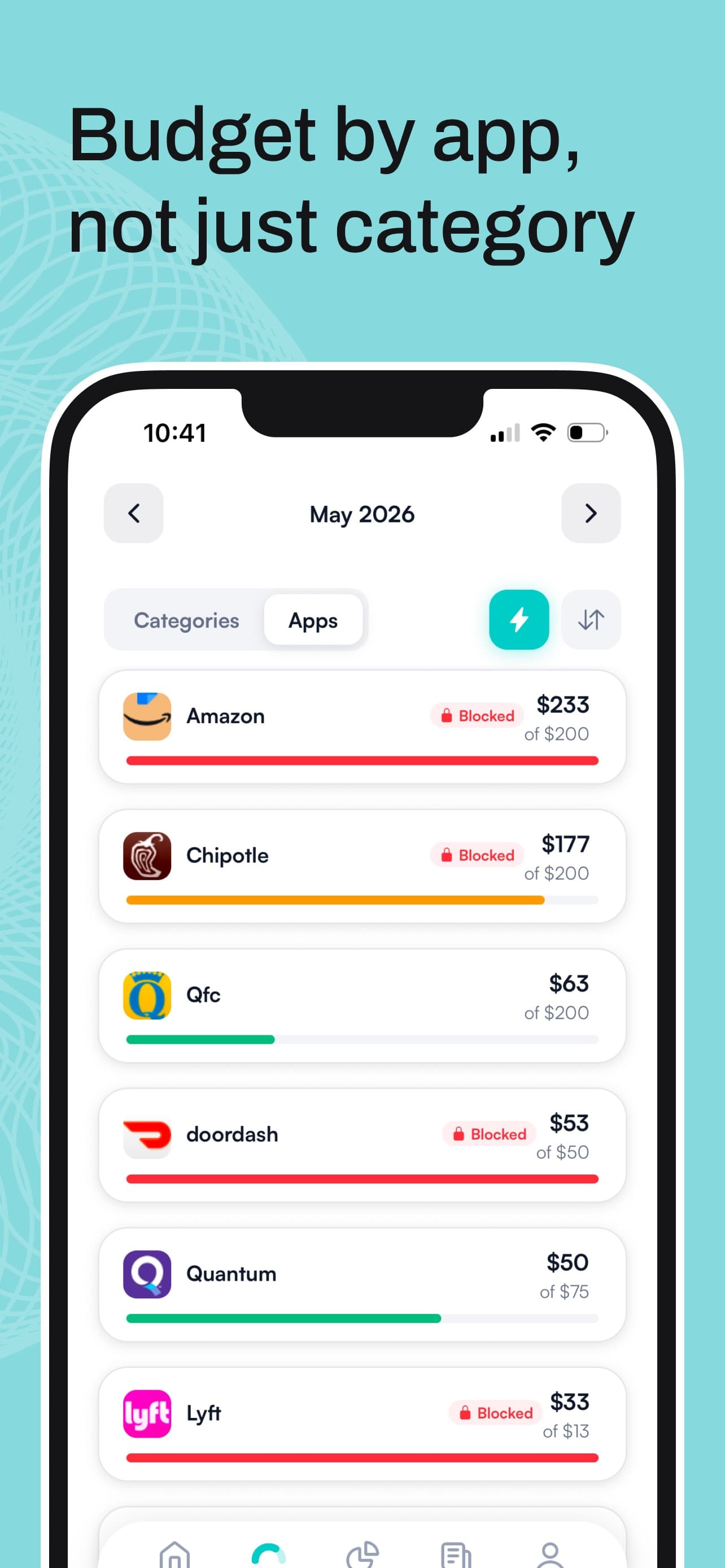
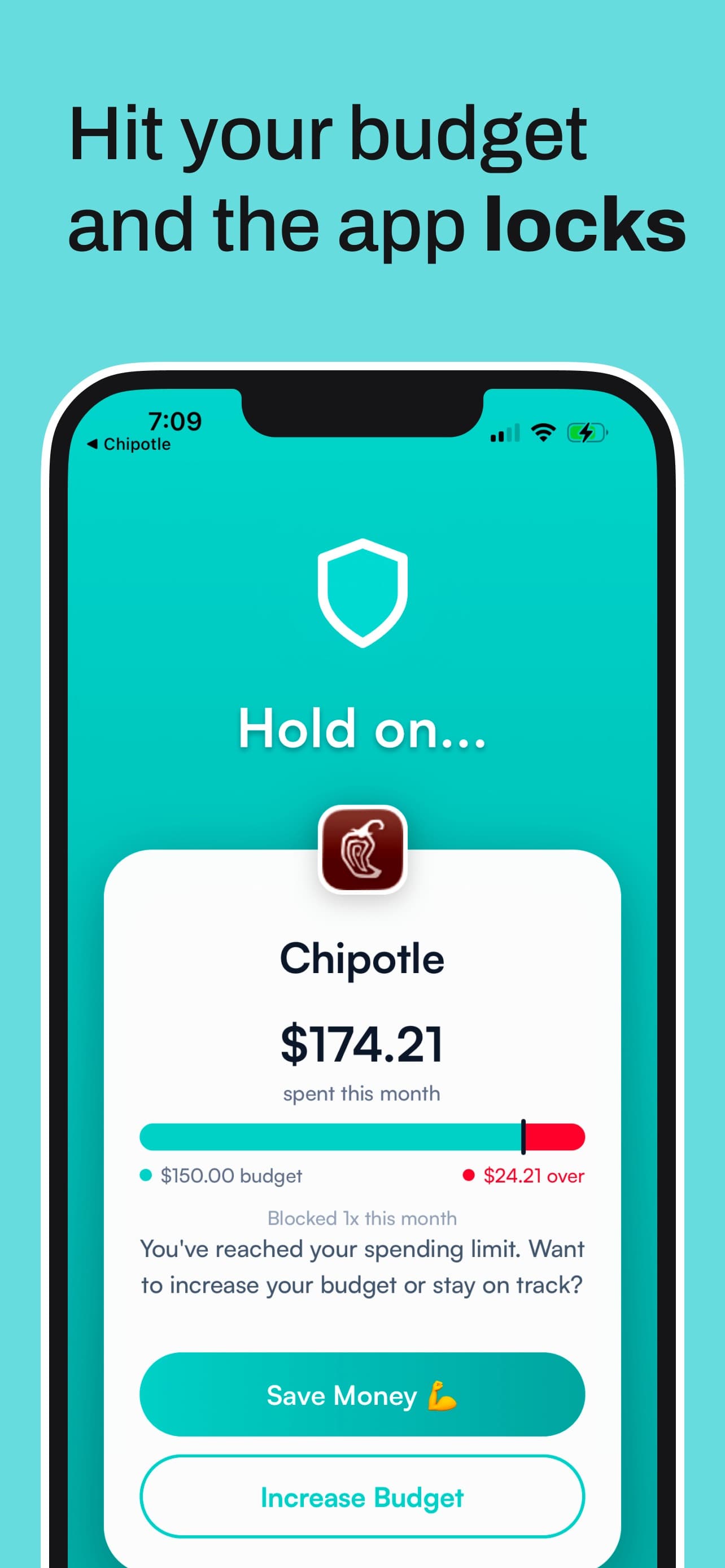
The block screen has two buttons, Save Money and Increase Budget. You can grab a temporary unblock of about five minutes to check on an order. To actually get back in for the month, you raise the limit yourself. That's a decision, not a swipe, and it feels like one.
One honest caveat. Hinder only knows about a purchase once your bank reports it, which can take minutes or a few hours. So the lock lands when the transaction syncs, not the second you tap Buy. Leave yourself a little cushion in each limit.
When is a time-based blocker the better pick?
When your problem is the habit of opening the app, not the total you spend in it.
Apple Screen Time
It's free and already on your phone. App Limits cap an app by minutes per day, Downtime blocks it on a schedule, and with a Screen Time passcode set, you can't just tap past the limit. It's also the one tool here that can turn off App Store and in-app purchases, under Content & Privacy Restrictions. That helps with mobile game spending. It does nothing for an Amazon order, which isn't an in-app purchase. Start here if you've never tried anything.
Opal
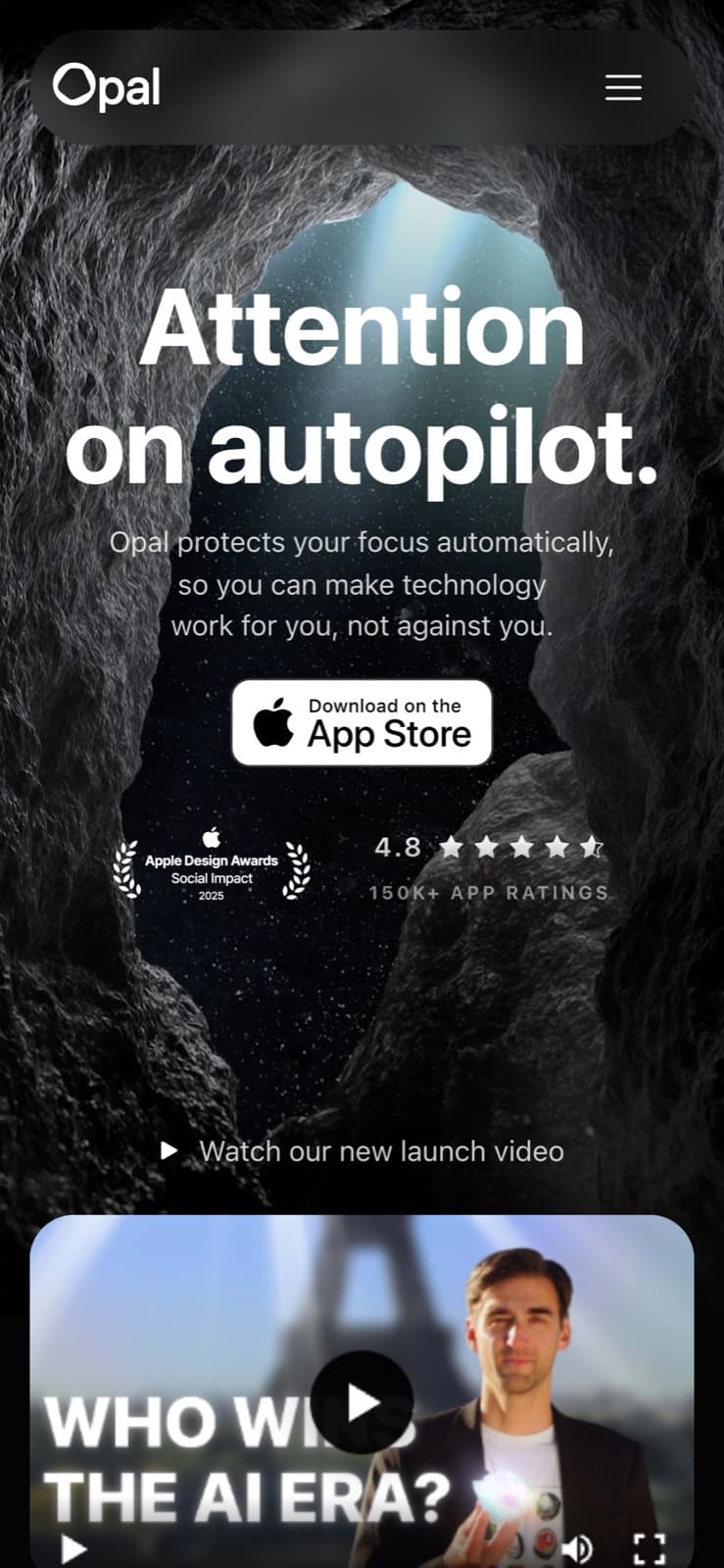
Opal is the app most people name when they ask for this. It blocks apps on schedules, time limits, or open limits, and it works on iPhone, Android, and Mac. The free tier gives you app blocking with one rule, which is enough to put every shopping app on a nightly lockout. Good for doomscrolling and late-night browsing. It doesn't read your bank, so a month where you've spent nothing gets blocked just the same as a month where you're $300 over.

 one sec
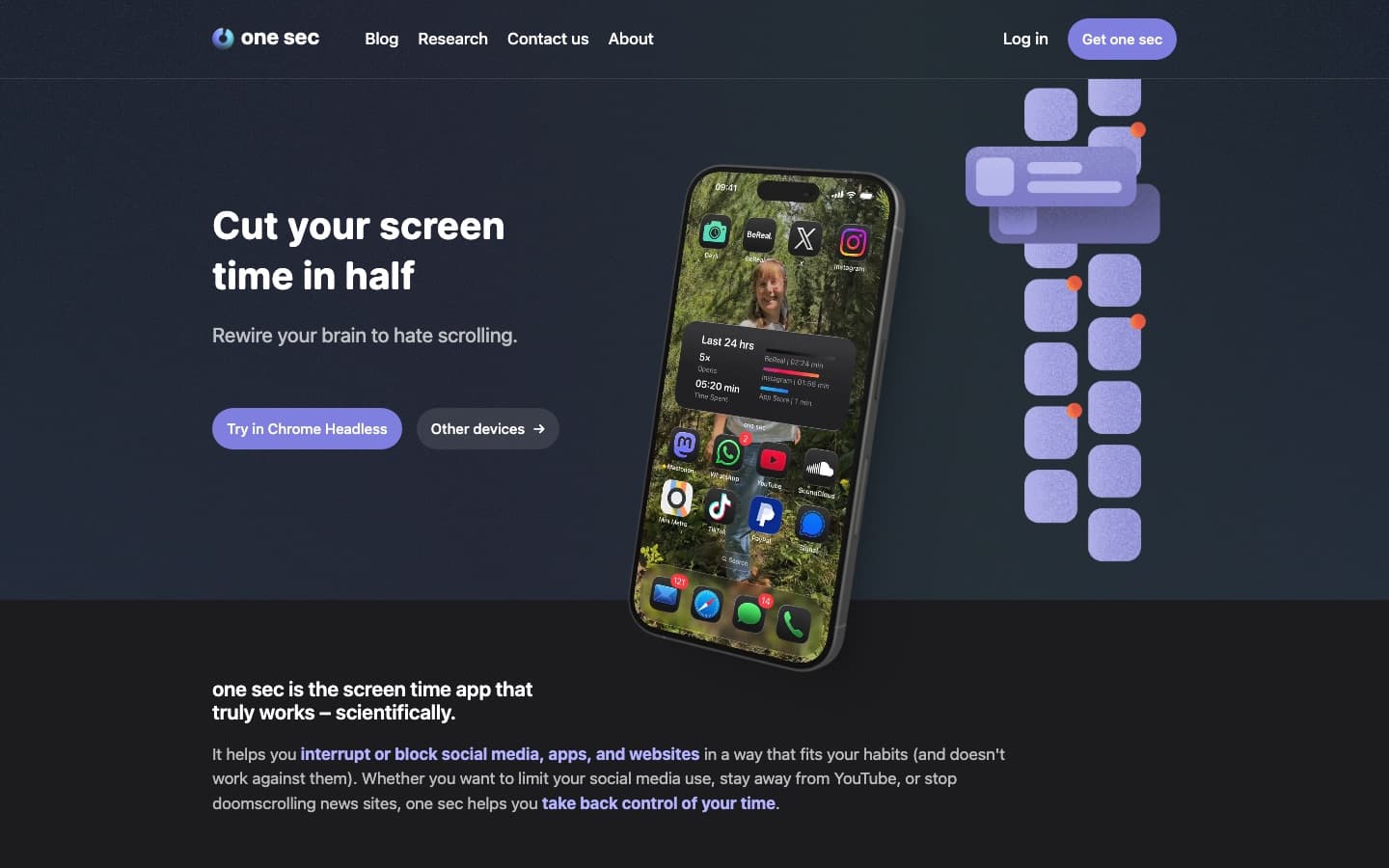
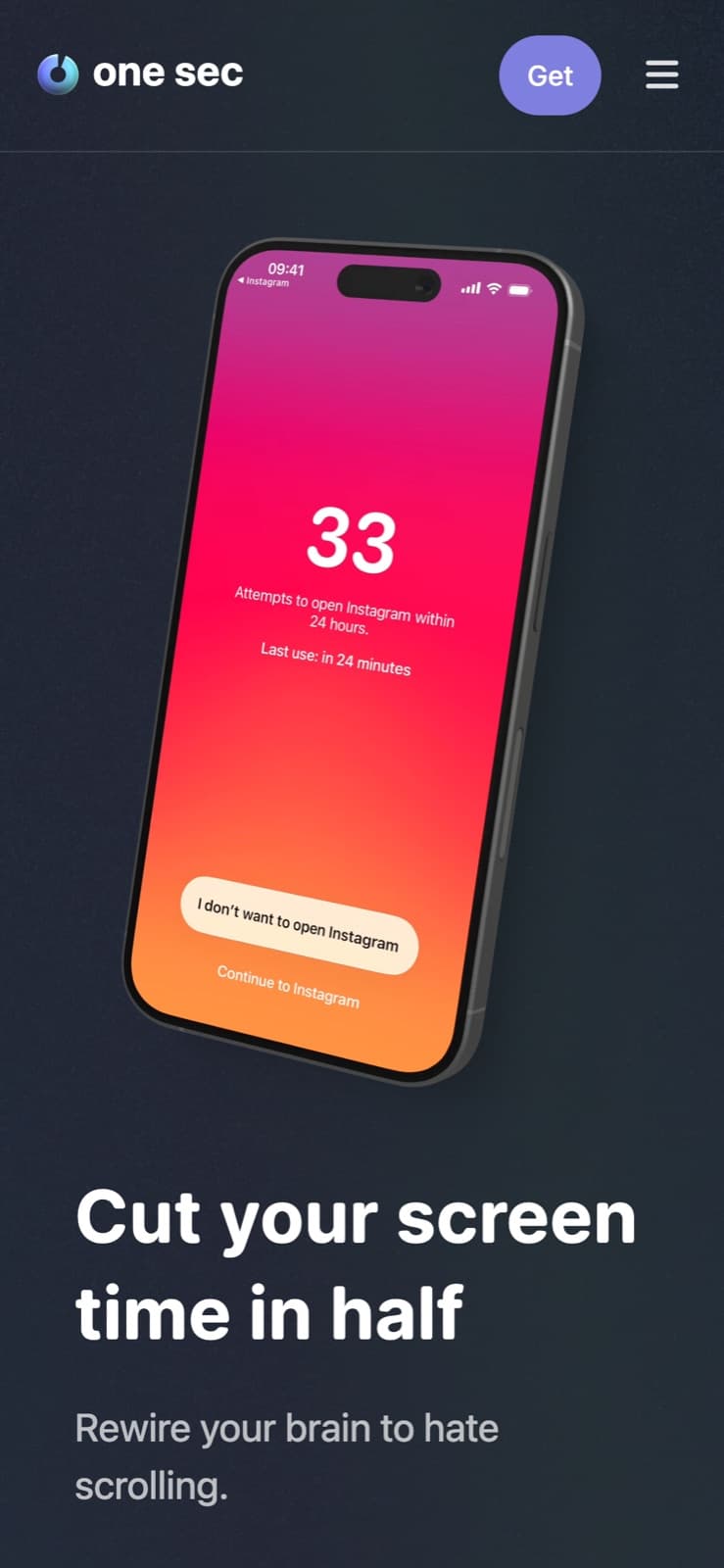
one sec is the best tool here for impulse opens. You flag an app, and every time you open it you have to take a slow breath first, then decide if you still want in. That tiny gap is often enough to close Temu without buying the third phone case. The free version covers one app, and it runs on iPhone, iPad, Android, Mac, and browsers. The catch: it's a speed bump. If you've already decided, you tap through.
 AppBlock
AppBlock blocks apps and sites by schedule, daily usage limit, or location, so shopping apps can shut off the moment you get home to the couch. Strict Mode keeps you from undoing it in a weak moment. The free plan allows two schedules and caps some features. It's the strongest pick on Android, where Hinder isn't available.
 Freedom
Freedom blocks apps and websites across your phone and computer at the same time, which matters if you shop on a laptop. The free plan does start-now sessions up to two hours; recurring schedules and Locked Mode need Premium. Great for "no shopping sites during work." Same blind spot as the rest: it can't tell a $0 week from a $500 one.
We ranked one sec, Freedom, and AppBlock against cooldown apps like CartPause in apps that stop you from spending money.
Should you pair a money blocker with a time blocker?
Yes, if you overspend and also open shopping apps on autopilot. They cover different failures.
Here's a setup that works. Put your shopping and food delivery apps behind Hinder budgets, so the money side has a hard stop. Then put one sec on the one app you open without thinking, so you get a breath before you even start browsing. If late nights are the danger zone, add a Screen Time Downtime window or an Opal rule for those hours.
Hinder catches the total. The time blocker catches the urge. You're not doubling up, you're closing two different doors.
How do I set up spending-based app blocking on my iPhone?
Install Hinder, link your bank, set a monthly limit for the category that leaks, and pick the apps that belong to it.
- Connect your accounts. Link your bank and cards through Plaid. Add cash spending by hand if it matters.
- Make one category for your real problem. Not ten. Just the one that hurts, like shopping or food delivery, with an honest monthly number.
- Add the apps. Give Hinder Screen Time permission and choose the apps tied to that budget. Our guide on how to choose and add apps to block walks through it.
- Turn on notifications. The 80% warning is your chance to slow down before anything locks.
If Amazon is the main event, we wrote a whole guide on how to block Amazon on your iPhone, from Screen Time limits to a budget-based lock.
What Hinder doesn't do
It's iPhone only, iOS 16 or later. No Android, no web, so it won't lock shopping sites on your laptop. It's single user, with no shared or household budgets. It doesn't track net worth or cancel subscriptions. Limits are monthly. If you're on Android, AppBlock or Opal will at least get you a time-based lock.
Common questions
Is there a Screen Time app for spending money?
Yes. Hinder works like Screen Time, but the trigger is money instead of minutes. It reads your bank and card transactions through Plaid, and when a category or per-app budget is spent, it locks the connected apps using iOS Screen Time. It's iPhone only, iOS 16 or later.
Can Opal block shopping apps?
Opal can block any app you pick, shopping apps included, on a schedule, after a time limit, or after a number of opens. It doesn't connect to your bank, so it has no idea whether you've spent $20 or $2,000 this month. The block happens either way.
Can Apple Screen Time stop me from spending money?
Only partly. Screen Time can turn off in-app purchases and App Store purchases under Content & Privacy Restrictions, and App Limits can cap shopping apps by minutes. But buying physical stuff in Amazon or DoorDash isn't an in-app purchase, so the restriction doesn't touch it, and the time limit doesn't know your budget.
Does one sec work on shopping apps?
Yes. one sec can intercept any app you flag, including Amazon or Temu, and make you take a breath before it opens. The free version covers one app. It's a pause, not a lock, so if you've already decided to buy, you can tap through.
Can I use Hinder and a time-based blocker together?
Yes, and it's a good setup. Use Hinder to lock your shopping or food delivery apps once their budget runs out, and use one sec, Opal, or Screen Time for the hours or the habit loop you want to break. They answer different questions, so they don't step on each other.